
Your office line, in your pocket.
The 4voice app turns an Android phone into your work extension. A call comes in, the phone rings with Answer and Decline, and you take it from the street, the car or the couch. Chat, voicemail and your queues come along.
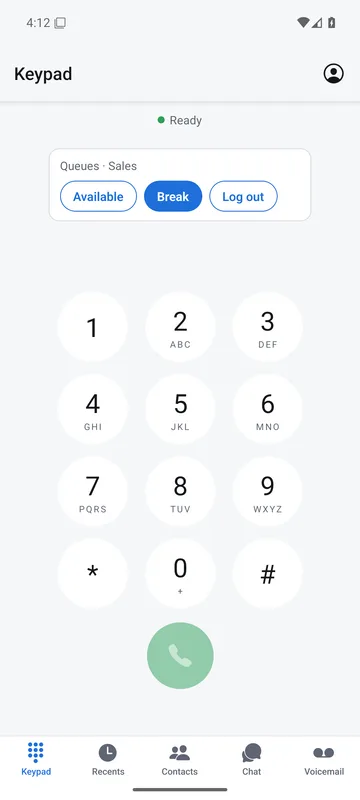
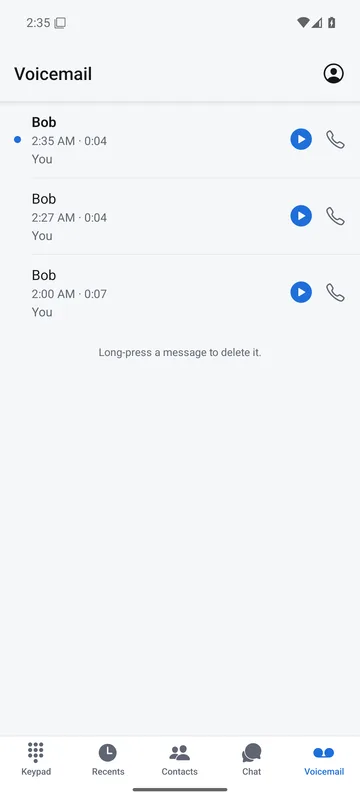
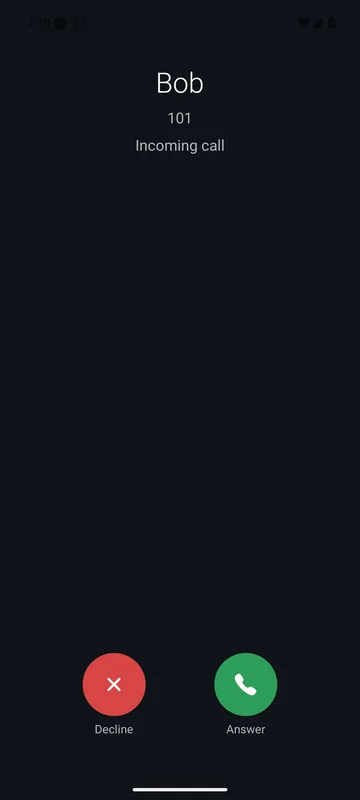
Closed app. Ringing phone.
Your extension is always reachable. A call to you sends a push, the app wakes and rings like a phone call, whether you opened it today or not. Tested on a real Android phone on cellular, 2026-10-01.
Follow one call from an idle phone to the keypad. Press any step to take over.
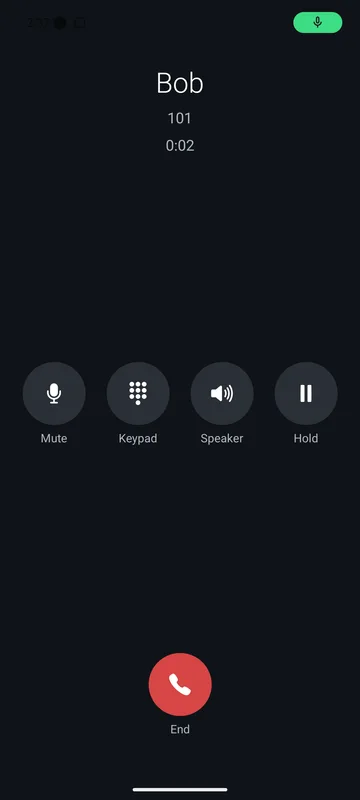
An Android phone sits idle with the app closed. A call from Bob, extension 101, arrives and the phone rings with Answer and Decline. The call is answered and a timer runs. Afterwards the app shows its keypad with the queue status.
Ringing: Answer or Decline, on a phone with the app closed.
Start at your desk. Finish on the road.
Take a live call with you. Nobody hangs up and nobody calls back. Send it to your mobile number with one star code, or pull it from the desk into the app. Both are add-ons, switched on per company.
A desk phone is on a call with Big Customer Inc. Choose a direction, then press the button: the call rings your mobile number, or is pulled from the desk to the app, and the desk phone is left free.
Answered on your mobile. The desk phone is free.
- *6Send it to your mobileAdd-on
Press *6 during a call, or To mobile in the browser phone. The call rings your mobile number and your desk phone lets go.
- *71Pull it into the appAdd-on
Dial *71 on another phone of the same extension, the app included. It takes over the answered call and the first phone hangs up.
Everything on your desk, in your hand.
These are the real screens. Your calls, your voicemail, your team and your queue status, all behind one company login.
It rings like a phone call.
Incoming calls arrive as a call notification with Answer and Decline, even with the app closed. In the call you get Mute, Keypad, Speaker and Hold.
- Two-way audio on cellular and on any Wi-Fi. Calls relay through our own servers.
- Answered somewhere else first? Your phone is told to stop ringing.
- Desk phone, browser and app can all ring together for the same extension.
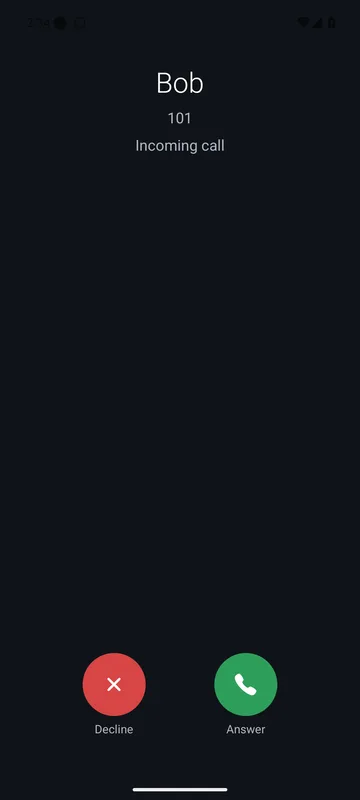
Your queue status is one tap away.
Dial from the keypad and set yourself Available, on Break or Logged out of your queues from the same screen. Contacts show who is free, ringing, on a call or offline.
- Queue card on the keypad: Available, Break, Log out.
- Live colleague status in Contacts, with a Pick up button for a ringing call.
- Place a call from your desk phone, starting on your screen.
- Speed dials and call park in one tap.
Play it. Call back. Done.
Every message has a play button and a call-back button, right on the list. Play or delete in the app and the mailbox lamp on your desk phone follows.
- Transcripts, written on our own servers.
- Shared team mailboxes in the same list.
- Record your greeting from the phone.
- New messages arrive as notifications.
Chat that knows who is free.
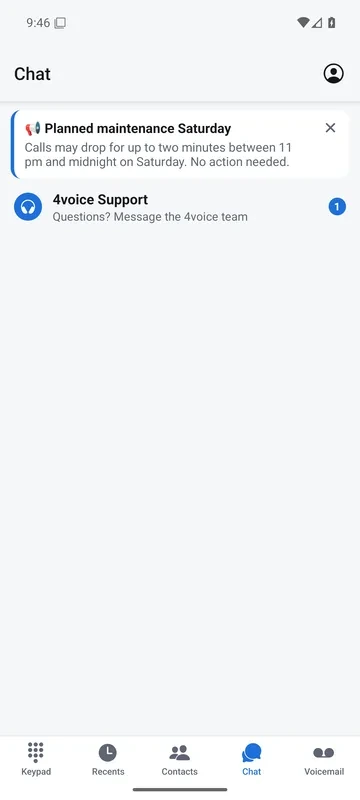
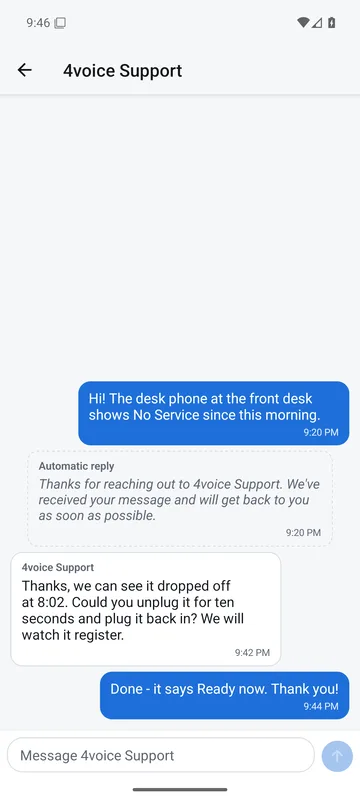
Message a colleague, see their presence, start a video call and read announcements the moment they land. 4voice Support is pinned at the top of Chat, and answers come back in the same thread.
- Presence shows in the directory, chat and busy lamps.
- Video calls from the app.
- Announcements from 4voice arrive with a push.
- Support tickets open and follow from the app, as an add-on.
Your rules and your team, in your pocket.
The app is the same extension you use at your desk, with the same settings. Change something in the portal and the phone agrees, and the other way round.
See who is free. Pick up their call.
Contacts show every colleague as free, ringing, on a call or offline. When a phone is ringing and nobody is getting to it, press Pick up.
Your call rules, from Account.
Set Do not disturb, forwarding and find-me, and block callers, straight from the phone. Your desk phone and portal show the same settings.
Dial from your desk phone.
Start the call in the app. Your desk phone rings first, then dials out from there.
Video, one tap away.
Place and answer video calls from the app, the same way you do in the browser phone.
Recordings with a pause.
Listen back with transcripts, and pause the recording for card details with one button.
Voicemail you can read.
Visual voicemail with a transcript on every row, a call-back button, shared team mailboxes and a greeting recorder that works from the phone. Delete a message in the app and it is gone from your desk phone too.
Add-ons appear when you have them.
Inbox, live chat, dialer, meetings, My calls, shifts, reminders and 911 location show up in the app once your company switches them on.
Dark at night. Light at noon.
Set your phone to dark and the app goes with it. Prefer one look? Pin light or dark under Account, then Appearance.
- Follows your phone by default, so it matches every other app you use.
- Pin it to light or dark whatever the phone says.
- The portal does the same: dark by default, light when you want it.
Your phone is set to
App appearance
The app is showing dark, following your phone.
Managers get the office in their pocket.
A second app for the people who run the company. See live calls, extensions and logins, and flip the office open or closed in a tap. Every phone follows in about ten seconds.
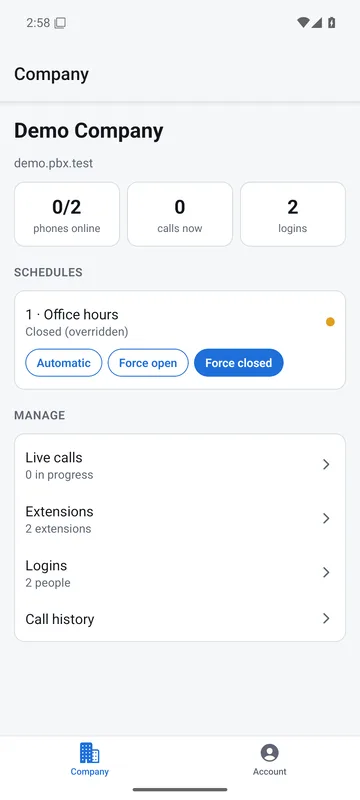
Force the office open or closed from your phone. Callers get the right menu, and the desk phones follow.
Office hours are automatic. The office is open now.
Press Force closed on the phone, or use the arrow keys.
- Live calls, extensions and company logins.
- Call history and a call report.
- Edit forwarding, blocking, park, speed dials, departments and holidays.
Acme
SCHEDULES
1 · Office hours
Open now
MANAGE
Live callsin progress
Extensionsevery phone
Loginsyour people
Call history
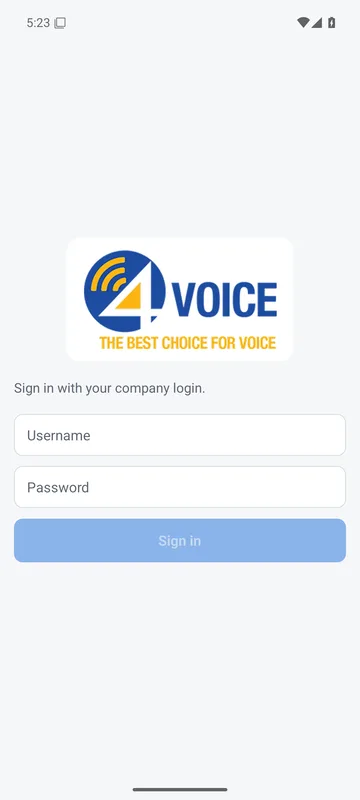
Sign in once. Your extension loads.
Use the same company login you use in the portal. Your number, your voicemail and your team load the moment you are in.
- 01
Sign in with your company login
Your phone gets its own secure sign-in, tied to that device.
- 02
Add two-factor if your company asks for it
Any authenticator app works. Enter the code once and you are in.
- 03
Forgot your password? Reset it in the app
No call to the office, no waiting for a manager.
- 04
Take calls anywhere
Desk phone, browser phone and app ring together, so you answer wherever you are.
Every mobile feature, live today.
Each one links to its entry in the full feature list, where you can search all 247 features.
Questions about the app.
Does the app ring when it is closed?
Does it work away from the office Wi-Fi?
Can I move a call between my desk phone and my mobile?
What can a manager do from a phone?
Does the app follow my phone's light or dark setting?
Put your extension in every pocket
See the app ring live, then see how your own call flow reaches it.
- A call flow drafted for your business
- Pricing built around your team size
- Every question answered on the call